Tracks
Tracks
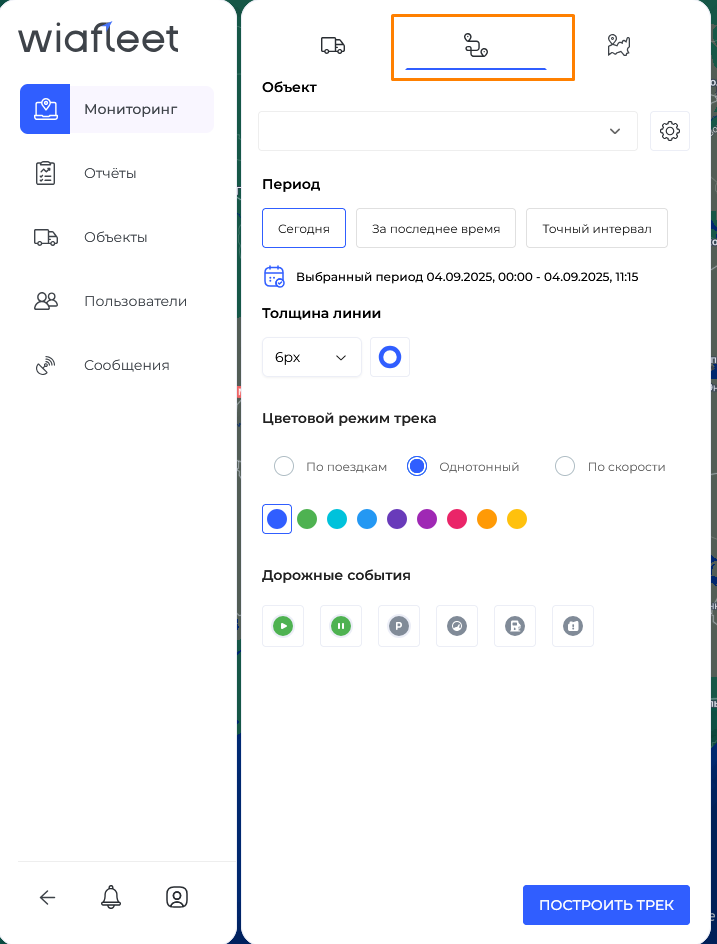
If you want to view the route of your vehicle in the system, you should use the “Tracks” functionality.
A track is a line (route) built on the map from a sequence of points received from a GPS/GLONASS tracker installed on the vehicle.
These points contain:
-
oordinates (latitude, longitude),
-
time,
-
speed,
-
sensor states (engine, ignition, fuel, etc.).
Why tracks are useful:
-
Route visualization — you can see exactly where the vehicle was moving and which path it followed.
-
Violation control — the system highlights speeding, entering restricted zones, or deviations from the planned route.
-
Transport usage monitoring — trips, stops, and parking are automatically divided.
-
Fuel control — refuelings and possible fuel drains are displayed on the track.
-
Analytics — reports are generated based on the track: mileage, driving time, average speed, idling time.
How to build a track in the system
1) Go to the Tracks module from the Monitoring section.
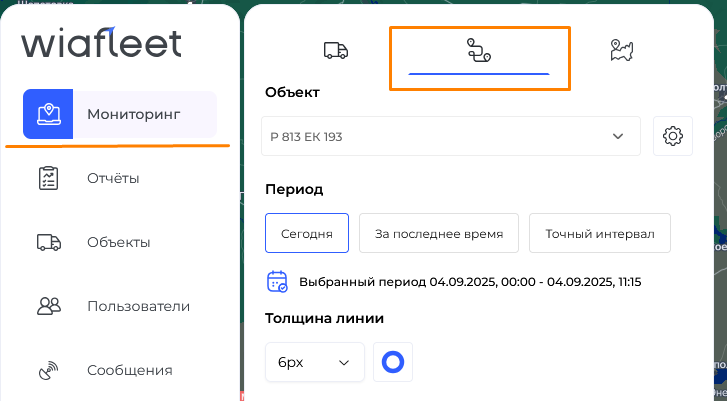
2) Select the vehicle (object) for which you want to generate trip data.
3) Choose the export period (from the available options):
-
Today — the track will be generated for the current day up to the moment of export.
-
Last period — specify the number of days to export.
-
Custom interval — set exact start and end dates.
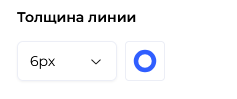
4) Select the track line thickness.
5) Choose the track color mode:
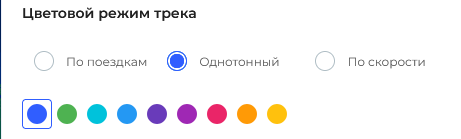
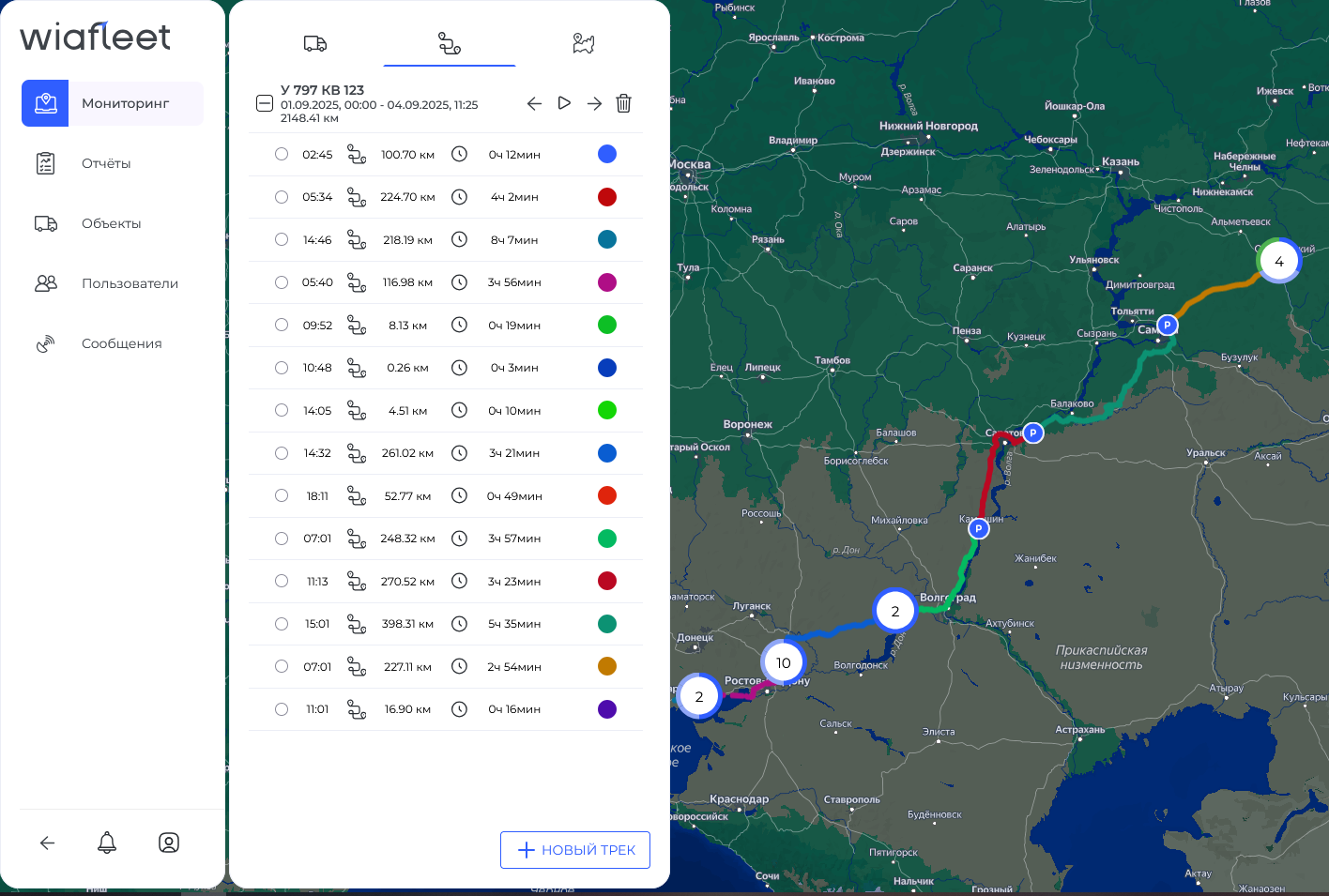
- By trips — the entire track is divided into separate trips, each displayed in its own color. Each trip can be highlighted on the map, with details on start time, total mileage, and trip duration.
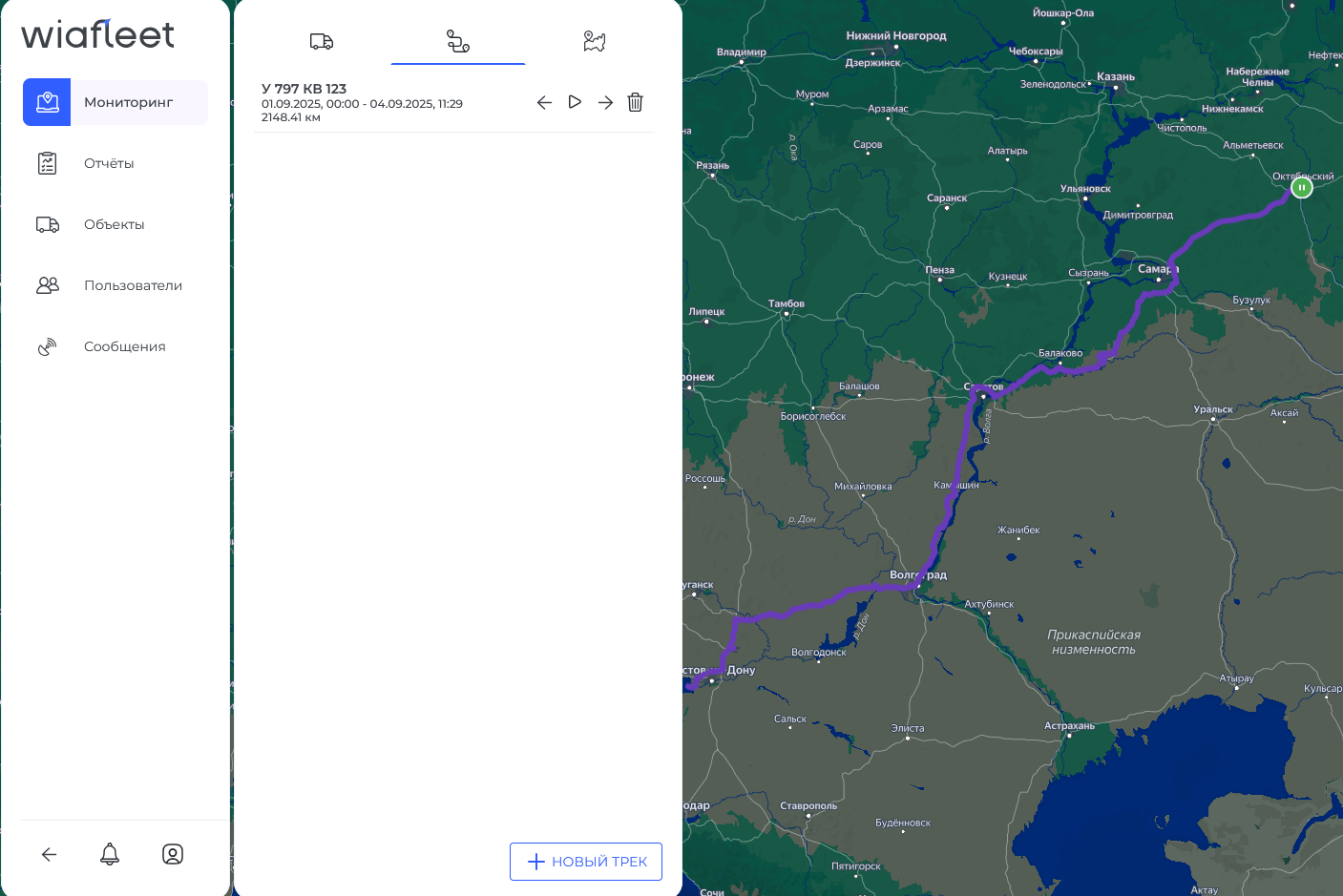
- Single color — a complete track for the selected time interval is displayed in one color (chosen by the user).
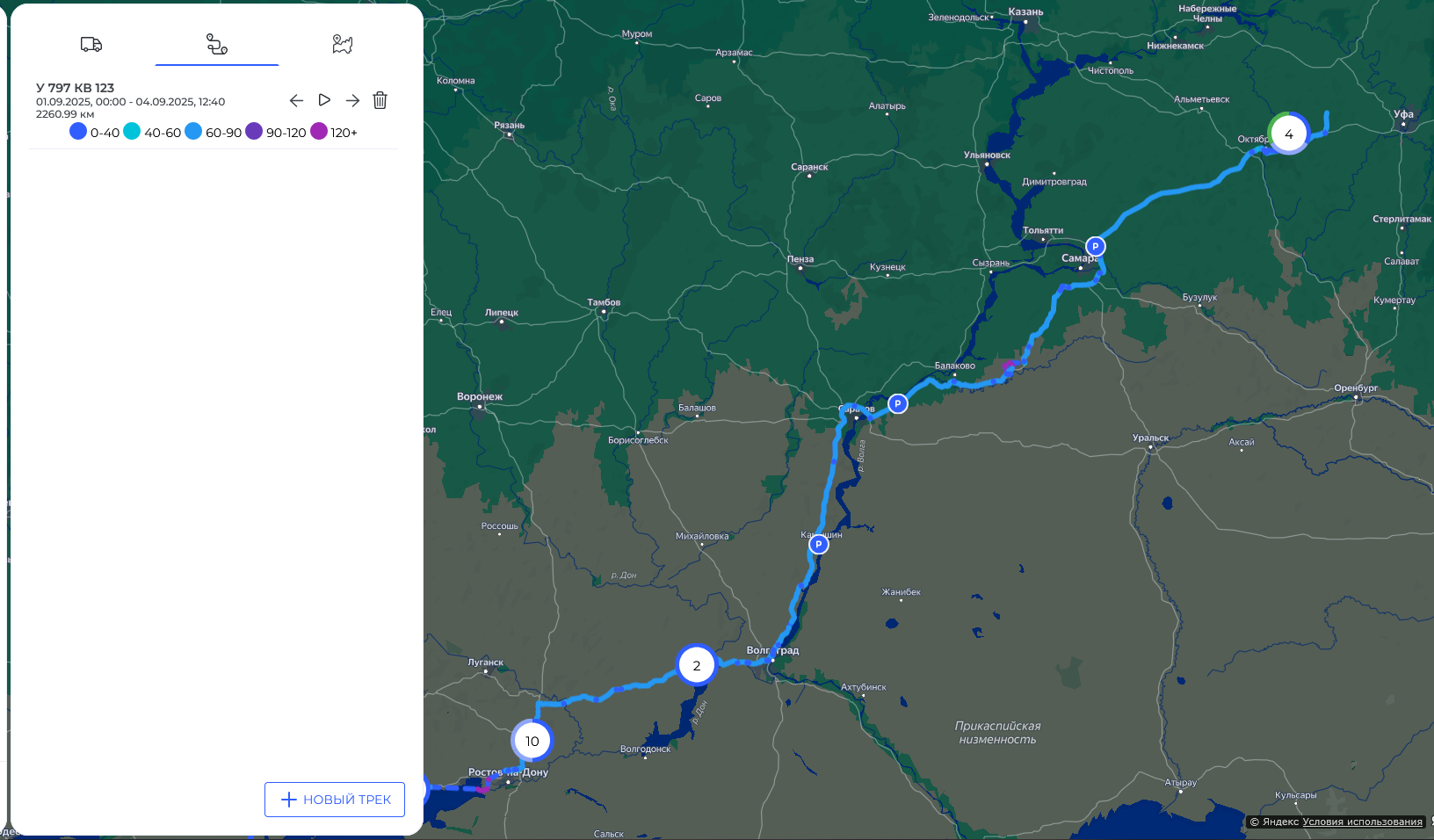
- By speed — the exported interval is divided into color segments according to the vehicle’s speed ranges set in its configuration.
Interface guide
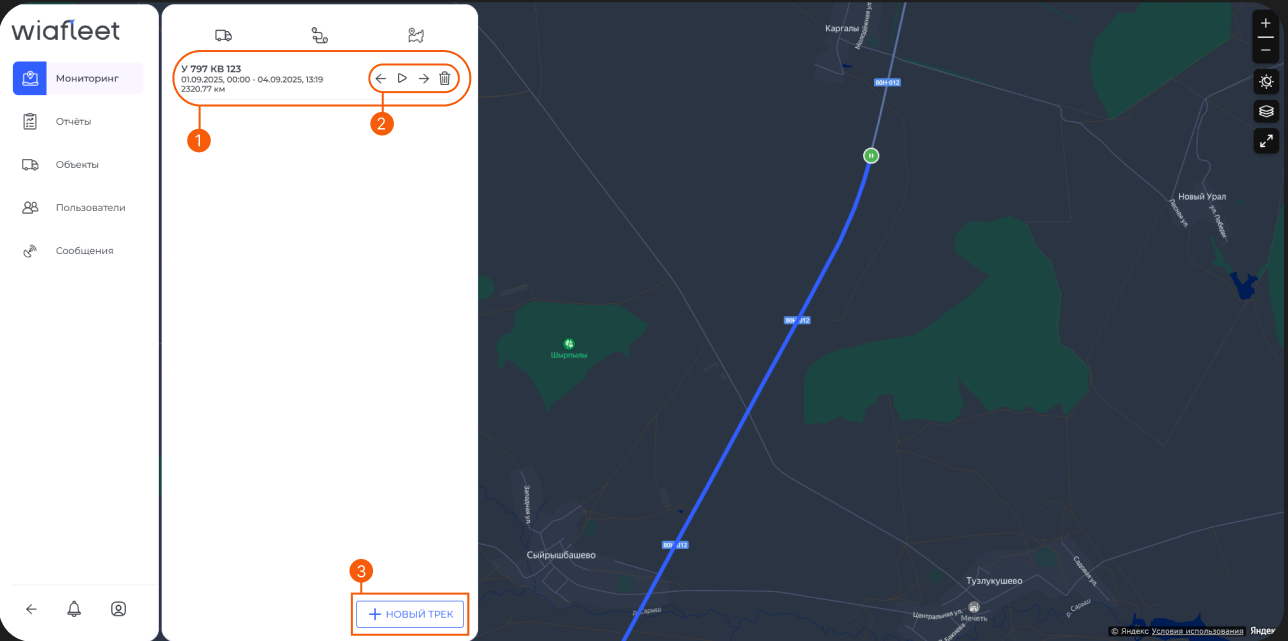
- Exported track information includes: license plate (device ID), selected period, time, and total mileage.
- Track player and button for deleting the exported track.
- Button for creating a new track.
Track player
The system includes a track playback feature. If you need to review a trip in “real-time mode,” you can use this tool.
On the map, the vehicle’s route will be replayed with all the necessary information displayed:
-
Location,
-
Satellites,
-
Sensors,
-
Speed,
-
Refuelings / fuel drains.
