Vehicle Maintenance
Vehicle Maintenance
1. Purpose
The “Vehicle Maintenance” section is designed for creating, tracking, and recording maintenance work for vehicles. Users can create maintenance reminders, specify work costs, monitor statuses, and analyze expenses for completed and planned work.
2. Main Features
The section provides the following main features:
- creating maintenance reminders;
- selecting a vehicle, work type, and maintenance cost;
- configuring reminders by mileage, engine hours, or days;
- adding unscheduled work;
- configuring email and push notifications;
- viewing statuses for created reminders;
- confirming completed work;
- storing completed work in the archive;
- viewing expenses and active work in dashboards.
3. Work List
After reminders are created, the work items are displayed in the general maintenance list. The list helps users quickly understand which vehicles have planned work, what work needs to be completed, and how much it costs.

The work list should include the following columns:
| Column | Description |
|---|---|
| Vehicle name and type | The vehicle name and its type. |
| Mileage | The current vehicle mileage. |
| Scheduled for | The planned value or date when the maintenance work should be completed. |
| Work | The name of the planned or completed work. |
| Status | The current reminder status. |
| Cost | The work cost specified by the user. |
4. Creating a Reminder
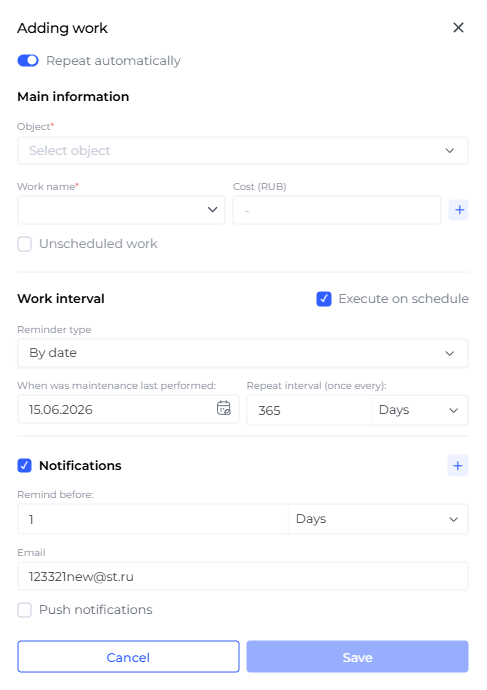
A reminder is created using the “Add Work” button. After clicking the button, a modal window opens where the user fills in the work parameters and reminder conditions.
4.1. Main Reminder Fields
| Field | Purpose |
|---|---|
| Vehicle | A searchable dropdown list. Used to select the vehicle for which the reminder is created. |
| Work type | A free-text field for entering the work name. Previously created work types are saved for the user and become available in the dropdown list when creating the next reminder. |
| Cost | A free-text field for entering the work cost. |
| Unscheduled work | Used to record work that does not require a scheduled reminder. After saving, this work is automatically moved to completed work and stored in the user’s work history. |
| Perform by schedule | Enables additional settings for the reminder trigger interval. |
5. Unscheduled Work
Unscheduled work is used to record maintenance that does not require advance planning or regular repetition. After saving, this work is automatically considered completed and moved to the user’s work history.
This option is suitable for recording one-time repairs, replacements, or other work that has already been completed and needs to be included in expenses and maintenance history.
6. Schedule-Based Configuration
The “Perform by schedule” function is used to configure recurring reminders. After it is enabled, the user selects the reminder type and sets the interval after which the vehicle should undergo maintenance.
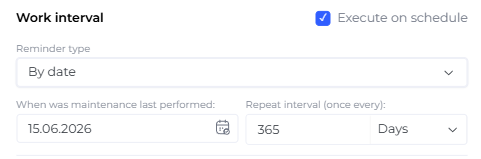
Three reminder types are available:
- by mileage;
- by engine hours;
- by days.
7. Mileage-Based Reminder
A mileage-based reminder is used when maintenance must be performed after a certain number of kilometers.
When the “By mileage” type is selected, two fields are available:
| Field | Description |
|---|---|
| When maintenance was last performed | An editable field. By default, it is filled with the current mileage counter value. The user can change the value manually. |
| Repeat interval | An editable field where the user specifies the mileage after which the next maintenance should be performed. |
7.1. Mileage-Based Configuration Example
Initial data:
- vehicle: A777EK 777;
- current mileage counter value: 50,000 km;
- maintenance repeat interval: 10,000 km.
| Situation | Value in “Last performed” field | Repeat interval |
|---|---|---|
| The vehicle has just undergone maintenance | 50,000 km | 10,000 km |
| The vehicle underwent maintenance 5,000 km ago | 45,000 km | 10,000 km |
8. Engine-Hours-Based Reminder
An engine-hours-based reminder is used when maintenance must be performed after a certain number of operating hours.
When the “By engine hours” type is selected, two fields are available:
| Field | Description |
|---|---|
| When maintenance was last performed | An editable field. By default, it is filled with the current engine hours counter value. The user can change the value manually. |
| Repeat interval | An editable field where the user specifies the interval in engine hours before the next maintenance. |
8.1. Engine-Hours-Based Configuration Example
Initial data:
- vehicle: A777EK 777;
- current engine hours counter value: 20 h;
- maintenance repeat interval: 5 h.
| Situation | Value in “Last performed” field | Repeat interval |
|---|---|---|
| The vehicle has just undergone maintenance | 20 h | 5 h |
| The vehicle underwent maintenance 2 h ago | 18 h | 5 h |
9. Days-Based Reminder
A days-based reminder is used when maintenance must be performed after a certain number of calendar days.
When the “By days” type is selected, two fields are available:
| Field | Description |
|---|---|
| When maintenance was last performed | An editable field. By default, it is filled with the current date. The user can change the date manually. |
| Repeat interval | An editable field where the user specifies the number of days before the next maintenance. |
9.1. Days-Based Configuration Example
Initial data:
- vehicle: A777EK 777;
- current date: 17.03.2026;
- maintenance repeat interval: 30 days.
| Situation | Value in “Last performed” field | Repeat interval |
|---|---|---|
| The vehicle has just undergone maintenance | 17.03.2026 | 30 days |
| The vehicle underwent maintenance 15 days ago | 02.03.2026 | 30 days |
10. Automatic Repeat
For reminders with the “Perform by schedule” function enabled, the “Repeat automatically” setting is available. It is used for recurring work that should repeat after completion is confirmed.
When the maintenance due point is reached and the user confirms completion, the system updates the starting point to the current value. Depending on the selected reminder type, this can be the current mileage, current engine hours, or current date. The work is considered completed, but the reminder is not deleted and continues to be used for the next cycle.
11. Notifications
Notifications can be enabled inside a maintenance reminder. They help warn the user in advance that the maintenance due point is approaching.
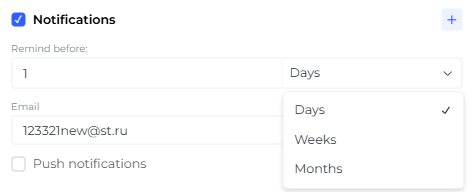
The following notification channels are available:
- email;
- push notification.
Several email addresses can be specified for email notifications.
11.1. Notification Timing
When notifications are enabled, the user can specify how far in advance the system should send the notification. The unit of measurement depends on the selected reminder type:
| Reminder type | “Remind in advance” unit |
|---|---|
| By mileage | Kilometers |
| By engine hours | Engine hours |
| By days | Days |
12. Reminder Statuses
The current status is displayed in the list of created reminders. The status helps users understand whether maintenance is required now, not yet required, overdue, or not assigned.
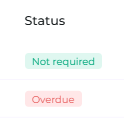
The following statuses are available:
- required;
- not required;
- overdue;
- not assigned.
Statuses are determined based on the reminder settings and the “Remind in advance” value.
13. Completing Work
The user can open a specific vehicle in the list and complete the work. After confirmation, the work is considered completed.
If recurring repetition is enabled for the reminder, the counter is updated after completion and a new countdown begins. The reminder remains active and is used for the next maintenance period.
14. Work Archive
All completed and confirmed work is stored in the work archive. The archive allows users to view maintenance history and open details for each completed work item.
The data retention period in the archive is 1 year. After this period expires, the data is deleted automatically.
15. Dashboards
Dashboards display summary information about active work, reminders, and the cost of completed work. This helps users monitor the current maintenance status and analyze expenses.
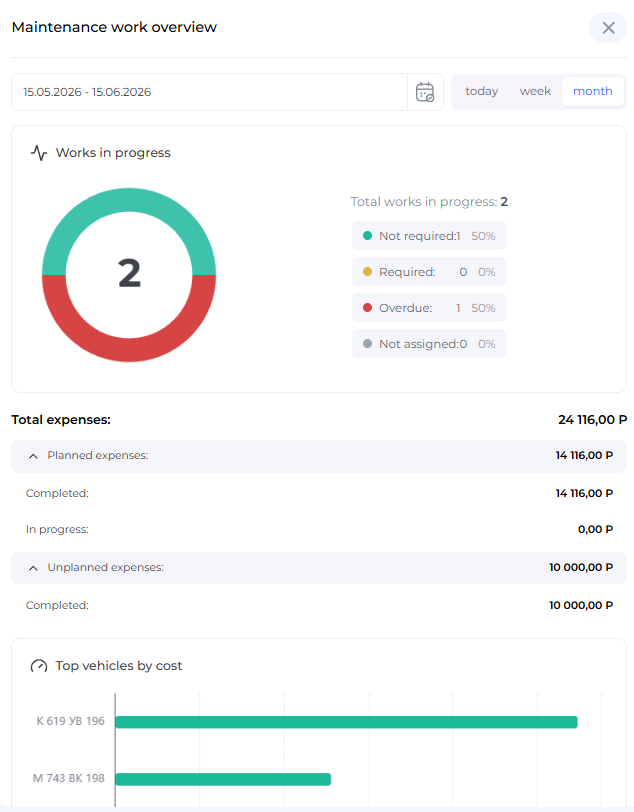
The dashboards should display the following expense indicators:
- total expenses;
- planned expenses;
- unscheduled expenses;
- top vehicles by spending.
16. Recommended Configuration Process
To correctly create a maintenance reminder, it is recommended to follow this process:
- Click the “Add Work” button.
- Select a vehicle from the vehicle list.
- Enter the work type.
- Enter the work cost if it should be included in expenses.
- Define the work type: scheduled or unscheduled.
- If the work is scheduled, enable “Perform by schedule”.
- Select the reminder type: by mileage, by engine hours, or by days.
- Check and, if necessary, edit the “When maintenance was last performed” value.
- Specify the repeat interval.
- Enable automatic repeat if needed.
- Configure notifications if needed.
- Save the reminder.
17. Summary
The “Vehicle Maintenance” section allows users to keep records of scheduled and unscheduled work for vehicles. Users can create reminders, configure intervals by mileage, engine hours, or days, receive notifications, confirm completed work, and monitor expenses through dashboards.
The main value of this section is that maintenance becomes manageable: work is recorded in the system, statuses help users avoid missing maintenance deadlines, and the archive and dashboards allow users to analyze maintenance history and costs.